
The Chrome Side Panel
The Side Panel is SnippetHub’s primary command center. Built natively on Chrome’s Side Panel API, it stays docked alongside your web pages, letting you browse, search, edit, organize, and copy snippets without opening floating windows or switching tabs. When you need extra screen space, it can also seamlessly pop out into a dedicated floating window.
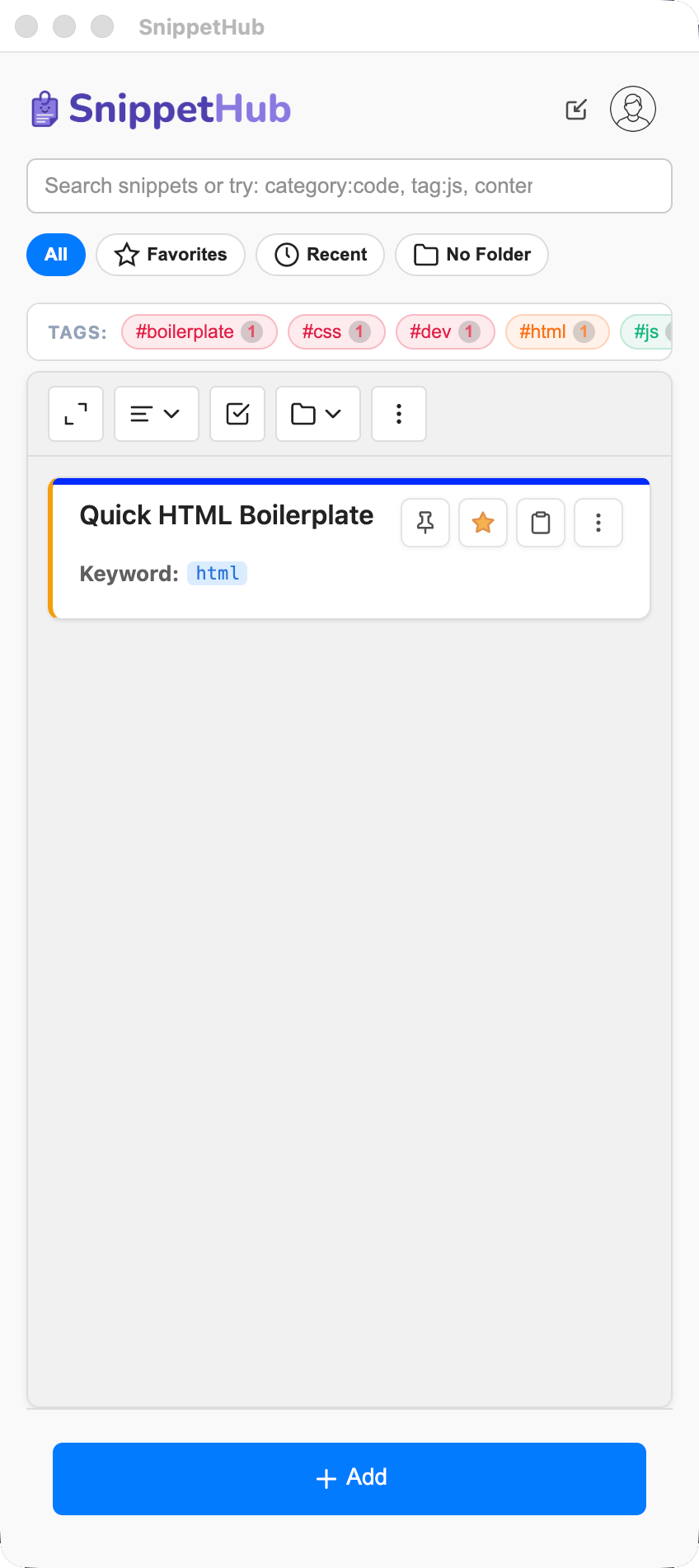
Standalone Companion Window (“Pop Out”)
SnippetHub allows you to break out of Chrome’s docked side panel into an independent, persistent companion window whenever you need more room, want a dedicated side-by-side workflow, or want to place SnippetHub on a secondary monitor:
- Pop Out to Window (
⧉): Click the pop-out icon in the top-right header (directly to the left of your avatar). SnippetHub launches as a clean, floating companion application window (450x780pxdefault) and automatically closes the browser’s side panel to keep your browsing area uncluttered. - Pop Back In to Sidebar (
↘): When working in windowed mode, the header icon transforms into a pop-in button (Pop in to sidebar). Clicking it focuses your active Chrome browser window, automatically re-opens the native Side Panel, and dismisses the standalone window. - Automatic Bounds & Position Memory: SnippetHub tracks your window dimensions and screen position as you resize or move it. When you pop out SnippetHub in future sessions, it instantly restores your exact preferred size and monitor placement.
- Shared State & Real-Time Sync: Both the side panel and popup window run against the same background service worker. Your Firebase authentication, live Firestore sync, local cache, clipboard history, and search queries remain perfectly in sync.
- Ergonomic Responsive Layout: Universal box-sizing keeps padding balanced and symmetrical (16px on all sides). On ultra-wide or maximized displays, the application view centers gracefully with a maximum width of 780px for optimal readability.
Snippet Card Ergonomics & Layout
Every snippet card is structured for maximum scanning speed and one-click actions:
- Grouped Title & Keyword: The trigger keyword (e.g.
;sigor/intro) is anchored directly beneath the snippet title in both Side Panel and Pop-Out modes, making abbreviations instantly identifiable. - Right-Aligned Quick Actions: Action buttons (Pin, Favorite, Copy, and More Options) are pinned to the far right edge of every card across all window widths and density modes. Right-clicking the Copy button opens a quick Copy As… menu (
Rich Text,Plain Text,Markdown,HTML). - Visual Folder & Category Accents: Custom emoji icons, category chips, and color dots provide immediate visual recognition.
Account & Settings Menu
Hovering over the profile avatar displays the Account & Settings tooltip. Clicking the avatar opens a dropdown organized into 5 functional sections:
- Account Profile: Displays your active account email address, with quick links to Change Password, Sign Out, and Delete Account.
- Productivity Tools:
- Command Palette (
⌘K/Ctrl+K): Rapidly search and deploy snippets using a floating modal. - Keyboard Shortcuts (
?): Full interactive cheat sheet of hotkeys. - Snippets Dashboard: Visual analytics, typing time saved, and activity streak tracker.
- Command Palette (
- Customization:
- Category Colors: Assign custom palette colors to your snippet categories.
- Theme Select: Switch instantly between
Light,Dark,Solarized, andMonokai. - Layout Density: Choose between
Comfortable(default),Compact(high-density list for large libraries), orSpacious. - Trigger Key Select: Choose your keyword auto-expansion trigger character (
;,/,!,,,@,#,:,~). - Right-Click Action: Configure context menu behavior (
Auto-Saveselected text orOpen Formprefilled). - Copy Format: Choose your global default copy format (
Rich Text,Plain Text,Markdown,HTML, orAuto (Mode)).
- Data Management:
- Import from JSON: Restore or merge snippets from a JSON backup.
- Export to JSON / Markdown: Export backups in open text formats.
- Export Vault (.zip): Generate an Obsidian- and Notion-compatible Markdown knowledge vault with YAML frontmatter.
- Support & Feedback: Direct link to the official documentation portal and Buy Me a Coffee support page.
Search Bar & Real-Time Match Counter
- Fuzzy Search: Powered by Fuse.js with instant title, tag, and content matching. Press
/or⌘F/Ctrl+Ffrom anywhere in the panel to focus. - Live Match Counter: Displays the exact number of matching snippets (e.g.,
5 matches) next to the clear button. - Search History Debounce: Search queries are recorded to recent history with a 1000ms debounce to keep history clean and meaningful.
- Clear All History: Clear your recent search history in one click from the search suggestions dropdown.
- Advanced Operators: Filter precisely using syntax like
tag:email,category:templates,folder:work, orcontent:function.
Quick Filter Chips & Interactive Tag Bar
- Quick Filter Chips: Filter your visible snippets in one click:
All: View your entire library.Favorites: Filter to starred snippets.Recent: Filter to snippets copied or modified recently.No Folder: Isolate uncategorized snippets for quick organization.
- Interactive Tag Bar: Horizontally scrollable tag chips displaying tag frequencies (e.g.,
#email (8)). Clicking any tag filters the list and displays an active tag filter badge. - Active Filter Pills: Displays active search terms, selected folder, tag filter, and sort mode with a quick
✕to clear individual filters.
Drag-and-Drop Manual Reordering & Sorting
- Drag-and-Drop Reordering: Grab any snippet card by its drag handle and move it up or down to customize your personal layout.
- Pinned Partitioning: Pinned snippets remain firmly grouped at the top of your list. Manual drag-and-drop order is preserved within both the pinned section and the unpinned section.
- Session & Cloud Persistence: Your custom drag-and-drop order is saved to local storage and synchronized with your Firebase account across restarts and devices.
- Sort Modes: Use the sort dropdown to switch between:
Default(Your custom drag-and-drop order)Title A-ZTitle Z-AMost UsedRecently Used
Batch Selection & Floating Bulk Action Bar
Select multiple snippets simultaneously to organize your library in seconds:
- Click the Bulk Edit button in the list header, or hold
Shiftwhile clicking snippet cards. - Checkboxes appear on every snippet card.
- The floating Bulk Action Bar appears at the bottom of the list:
- Select All: Check or uncheck all visible snippets.
- Move: Move selected snippets to a target folder in one click.
- Tag: Add new tags across all selected snippets.
- Export: Export only the selected subset as JSON, Markdown (.md), CSV, or Vault (.zip).
- Delete: Batch delete selected snippets with a single confirmation.
macOS-Style “Quick Look” Preview (Spacebar)
Quickly inspect the full contents, code formatting, and metadata of any snippet without altering card expansion states or leaving your current scroll position:
- Trigger with Spacebar: Select any snippet card with the
↑/↓arrow keys and press Spacebar, or choose Quick Look from the snippet dropdown menu (⋮). - Spotlight-Style Modal: A translucent glassmorphism preview opens immediately, displaying:
- Full title and assigned folder badge (with customized folder icon and accent color).
- Assigned trigger keyword chip (e.g.
;sig). - Total usage counter and syntax-highlighted code blocks (via Highlight.js).
- Clean rendered HTML and tag chips with custom tag colors.
- Continuous Keyboard Browsing:
- ↑ and ↓: Seamlessly cycle to the previous or next snippet card in real time while keeping the Quick Look window open.
- C or Enter: Copy snippet to clipboard as rich HTML + plaintext.
- I: Insert snippet directly into the active browser input or editor.
- E: Open snippet directly in the side panel editor.
- Spacebar or Esc: Dismiss Quick Look and return to the list.