
Quick Start Guide
Follow this 3-minute tutorial to learn how to create, manage, and use snippets.
Step 1: Open the Side Panel (or Standalone Window)
Click the SnippetHub icon in your browser toolbar or press your configured browser shortcut to open Chrome’s native side panel.
If you prefer a floating window (great for secondary monitors or tiling windows), click the Pop Out icon (⧉) in the top-right header to open SnippetHub in its own persistent window.
Step 2: Create a New Snippet
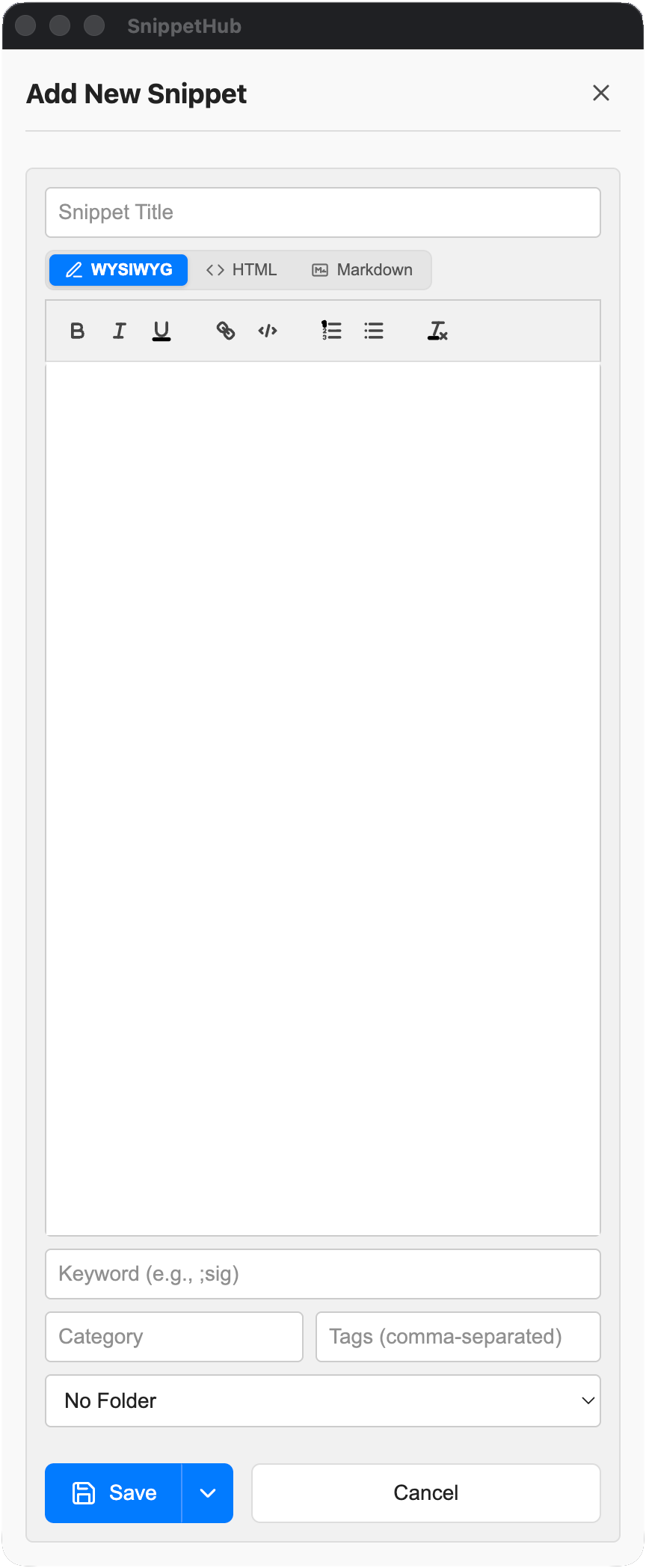
- Click the + New Snippet button in the top bar (or press
Non your keyboard when not typing). - Enter a descriptive Title (for example,
Meeting Follow-Up). - Type your template content into the editor:
Hi {{client:Client Name}},Thank you for taking the time to speak with me today, {{date}}.As discussed, here is the link to review: {{clipboard}}Best regards,Timothy
- Add a tag or assign it to a category (e.g.,
WorkorEmail). - Click Save (or press
⌘Enter/Ctrl+Enter).
Step 3: Insert Your Snippet into a Webpage
You have three convenient ways to deploy your new snippet:
- Click to Copy / Direct Insert: Click the Copy button on the snippet card or click Insert to inject it directly into the active text area or email composer.
- Command Palette: Press
⌘K(Mac) orCtrl+Shift+P(Windows), typeMeeting, and pressEnter. - Omnibox: Click Chrome’s address bar, type
snip, hitSpaceorTab, typeMeeting, and pressEnterto copy it to your clipboard.
If your snippet contains interactive variables like {{client:Client Name}}a lightweight prompt will ask for the client’s name before inserting the text!