
In-Page Text Expander
SnippetHub includes a high-performance, in-page Text Expander engine. By assigning a short Keyword (or abbreviation) to any snippet, you can type that keyword anywhere on the web—in search bars, comment boxes, forms, email composers, or docs—and watch it instantly expand into your complete snippet.
How Text Expansion Works
- Assign a Keyword: When creating or editing a snippet in the side panel, enter a short abbreviation in the Keyword / Shortcut field (e.g.,
;sig,;intro, or/meeting). - Type in Any Web Input: Navigate to any webpage and place your cursor inside a text input field, textarea, or contenteditable editor (such as Gmail, Notion, Google Docs, or Slack).
- Trigger Expansion: Type your keyword followed by your expansion key (
Space,Enter, orTab), or immediately if using a leading trigger prefix. SnippetHub replaces your keyword with your resolved snippet text.
Customizable Expansion Trigger Keys
You can choose your preferred trigger character to fit your typing rhythm and prevent accidental expansions while typing standard sentences.
Available Trigger Characters
SnippetHub supports multiple popular trigger prefixes:
;(Semicolon - Default): Standard for power users (e.g.,;email,;zoom)./(Slash): Familiar from Notion and Slack slash commands (e.g.,/intro,/shrug).!(Exclamation): Prominent prefix for technical macros (e.g.,!curl,!docker).,(Comma): Low-finger-travel shortcut prefix.@(At Symbol): Great for contact details and mentions.#(Hash): Easy to reach on all keyboard layouts.:(Colon): Popular emoji-style shortcut prefix (e.g.,:pr,:review).~(Tilde): Clean delimiter that avoids collision with normal prose.
Changing Your Trigger Key
- Open the SnippetHub side panel.
- Click the user avatar menu in the top-right corner.
- Locate the Trigger dropdown select under the Customization section.
- Select your preferred trigger prefix.
- Your choice is saved instantly to local and cloud storage (
chrome.storage.sync), synchronizing your trigger preferences across all your devices.
Supported Input Types & Editors
The SnippetHub expansion engine is engineered to handle modern web applications and diverse input architectures:
- Standard HTML Inputs:
<input type="text">,<input type="email">,<input type="search">, and multi-line<textarea>. - ContentEditable Rich Text Editors:
- Gmail & Outlook Web: Preserves non-breaking spaces and caret position.
- Notion & Slack Web: Correctly triggers and injects formatted content.
- Zendesk, Intercom & Freshdesk: Accelerates customer support workflows without requiring specialized helpdesk integrations.
- GitHub & GitLab: Works seamlessly in issue descriptions, pull request reviews, and markdown comments.
Privacy & Sensitive Field Protection
SnippetHub is engineered with strict user privacy guarantees to ensure your passwords and sensitive information are never intercepted or exposed:
- Password Field Exclusion: SnippetHub automatically ignores all password input fields (
<input type="password">). It will never inspect caret text, calculate matching snippets, or trigger expansion inside password inputs. - Hidden & File Inputs:
<input type="hidden">and<input type="file">elements are strictly excluded. - Credit Card & Financial Inputs: Form fields marked with
autocomplete="current-password",autocomplete="new-password",autocomplete="cc-number", orautocomplete="credit-card"are automatically bypassed. - Developer Opt-Out (
data-no-snippets): Web developers can adddata-no-snippetsto any HTML input or editor to instruct SnippetHub to completely disable expansion and autocomplete on that element.
High-Performance Keystroke Engine
- Micro-Debounced Caret Matching: To ensure zero typing latency even when composing long documents, caret text evaluation is debounced by 40ms. Rapid typing remains completely fluid without dropped frames.
- Throttled Sync: In-page keyword caches update in real-time via local storage events without bombarding your network connection or Firestore database.
Keyword Best Practices
To maximize speed and avoid collisions with regular typing:
- Use a Consistent Prefix: Prefixing keywords with your trigger symbol (e.g.,
;addrfor your address,;meetfor your calendar link) prevents the expander from triggering when you write words containing the same letters. - Keep Them Short: 3–5 characters is ideal for muscle memory.
- Group by Context:
;e...for email responses (;ethx,;efollow,;eintro);c...for code snippets (;clog,;cfetch,;csql);u...for URLs and links (;uzoom,;ugh,;udocs)
Floating Autocomplete / Suggestion Pill (Ghost Text)
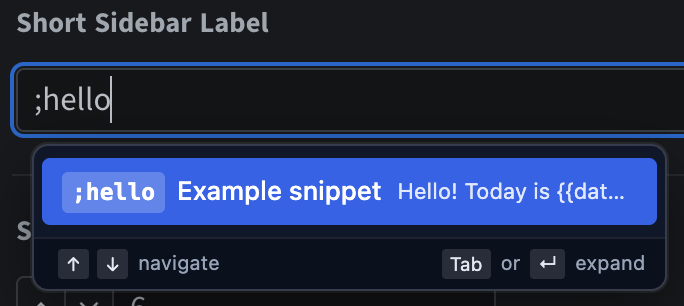
Never remember the exact abbreviation again. While typing in any input field or rich editor, SnippetHub projects a smart, floating autocomplete pill directly underneath your typing cursor.
Key Features & Workflow
- Zero Friction Summoning: Simply type your trigger key followed by one or more letters (e.g.,
;sor/me). The suggestion pill automatically calculates your caret coordinates and floats right beside your cursor. - Smart Ranked Matches:
- Exact keyword match
- Keyword prefix match
- Pinned snippets
- Favorites
- Title prefix and substring matches
- Snippet Previews: Each suggestion row displays the assigned trigger keyword chip, the snippet title, and an instant preview snippet of the underlying text.
- Lightning Keyboard Navigation:
- ↑ and ↓: Navigate through candidate snippets.
- Tab or Enter: Instantly accept the highlighted snippet, replacing your typed trigger word and resolving all dynamic placeholders.
- Esc or click outside: Dismiss the pill cleanly and continue typing standard text.
- Full Editor Compatibility: Works flawlessly in standard text inputs, multiline textareas, and rich
contenteditableenvironments like Gmail, Notion, Slack, Zendesk, and GitHub.